

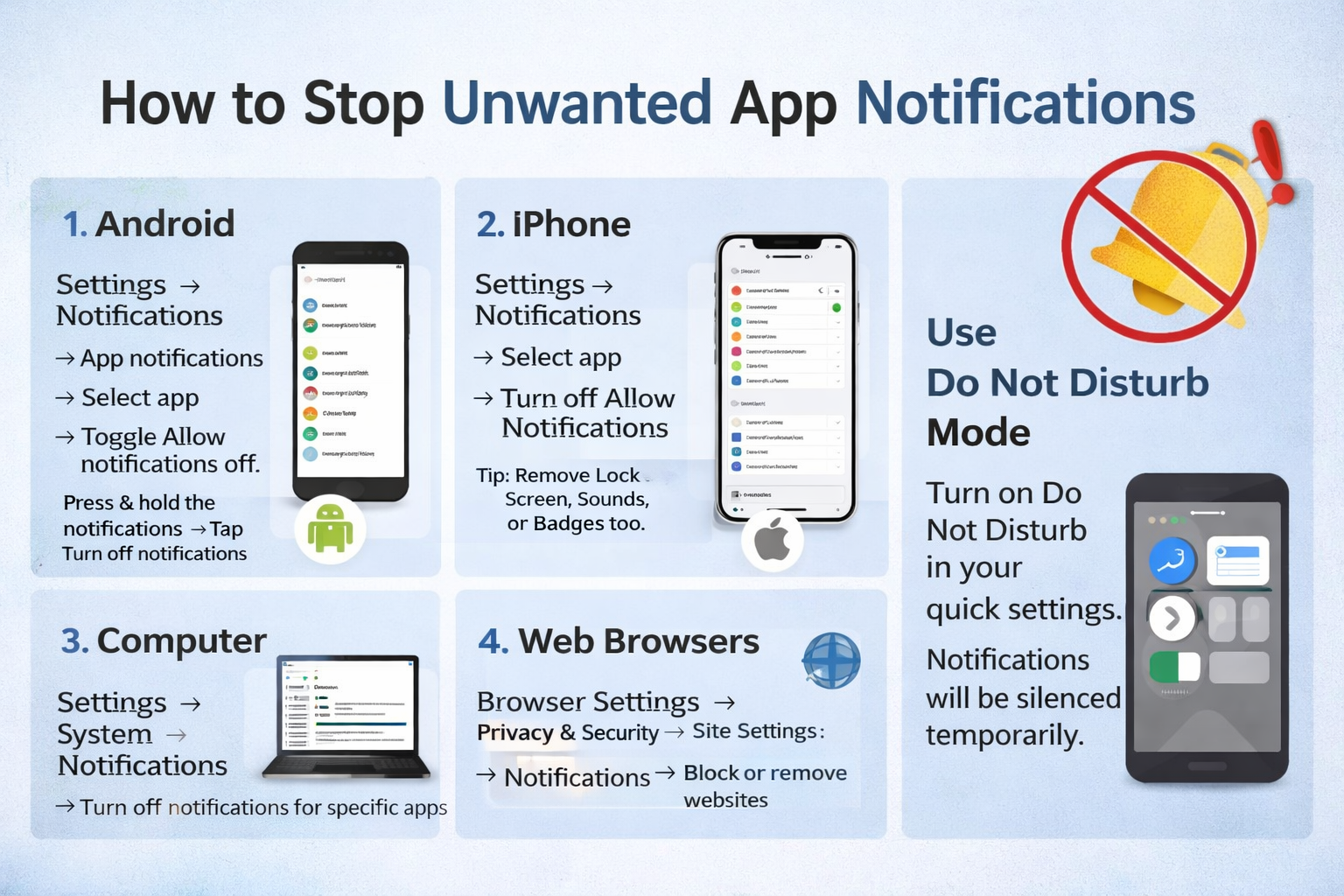
Stopping unwanted app notifications depends on the device you use. Here are the most common methods for Android phones, iPhones, and computers.
1. On Android Phones
-
Open Settings.
-
Tap Notifications.
-
Select App notifications.
-
Choose the app sending unwanted alerts.
-
Toggle Allow notifications off.
Quick method:

-
Press and hold the notification when it appears.
-
Tap Turn off notifications or Settings.
This is the fastest way to stop alerts from a specific app.
2. On iPhone
-
Open Settings.
-
Tap Notifications.
-
Select the app you want.
-
Turn off Allow Notifications.
You can also disable:
-
Lock Screen notifications
-
Sounds
-
Badges
This allows you to customise what alerts you still want.
3. On Windows Computer
-
Open Settings.
-
Click System.
-
Select Notifications.
-
Turn off notifications for specific apps.
4. On Web Browsers (Chrome, Edge, etc.)
Sometimes websites send notifications.
-
Open browser Settings.
-
Go to Privacy & Security.
-
Click Site Settings → Notifications.
-
Block or remove websites sending alerts.
5. Use Do Not Disturb Mode
If you want temporary silence:
-
Turn on Do Not Disturb in your phone’s quick settings.
-
Notifications will be muted for a chosen time.
✅ Tip: Many apps (like social media or shopping apps) also have notification settings inside the app itself. Turning them off there can reduce spam alerts.